


Overview
IP Whitelist mode restricts access to your Residential-Pro VPS by source IP address. Only the public IPv4 addresses saved in your whitelist may connect to the VPS. All other source addresses are blocked.
Important: IP Whitelist and Port Forwarding are mutually exclusive. Only one mode can be active for a VPS at a time.
Open Residential-Pro Access
- Sign in to the SixtyNet Client Area.
- Open Services and select your Residential-Pro VPS.
- Choose Manage Access & Ports.
- Select the IP Whitelist tab.
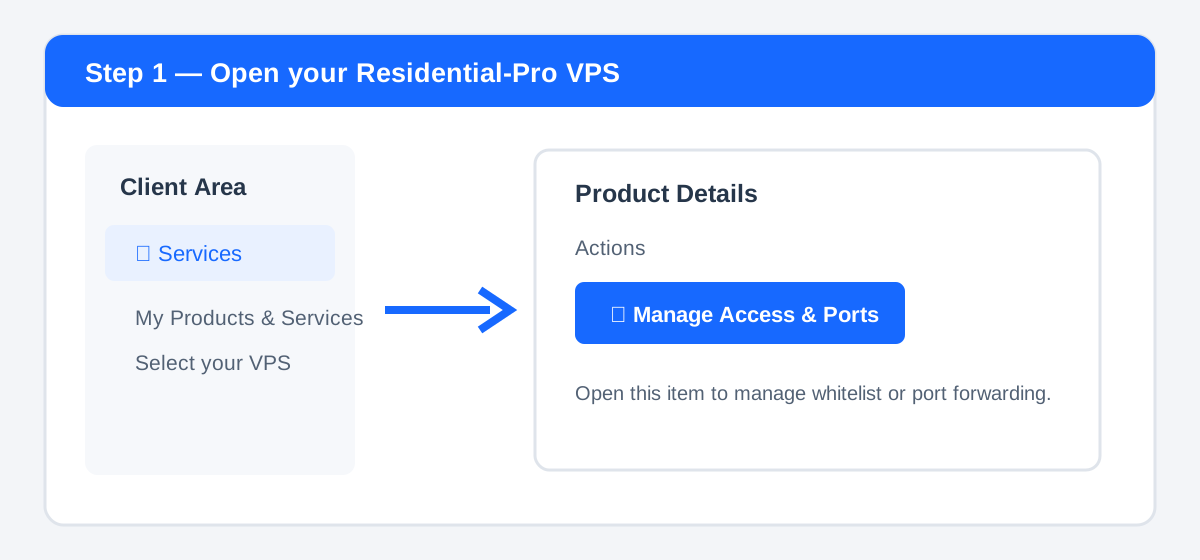 Open your VPS product page and select Manage Access & Ports under Actions.
Add or update trusted IP addresses
- Enter one public IPv4 address per line.
- Confirm that the address is the public source IP of the device, office, VPN, or relay server that will connect to the VPS.
- Click Save whitelist.
- Wait for the success message before closing the page.
You may save up to 5 unique public IPv4 addresses per VPS. Duplicate entries are removed automatically.
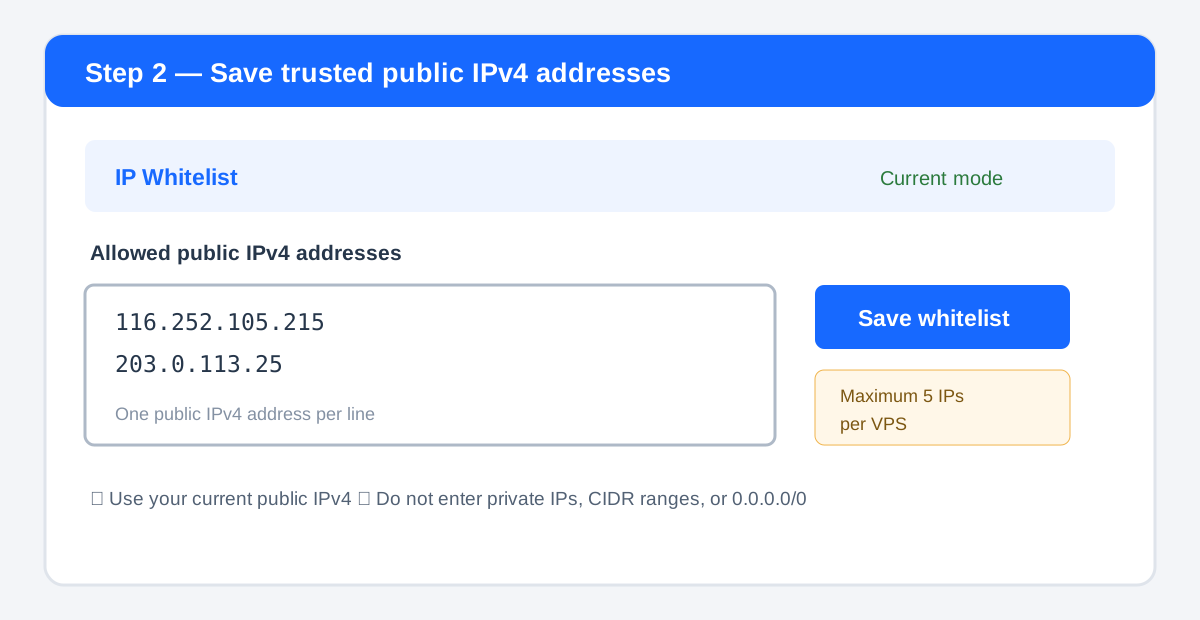 Enter one public IPv4 address per line, then click Save whitelist. Maximum: 5 addresses per VPS.
Accepted addresses
- Use the single public IPv4 address currently assigned by your ISP, VPN, office, or relay provider.
- Private addresses such as
10.x.x.x,172.16.x.x, and192.168.x.xare not accepted. - Network-wide entries such as
0.0.0.0/0and CIDR ranges are not accepted. - If your ISP changes your public IP, update the whitelist before reconnecting.
Switch from Port Forwarding
Open the IP Whitelist tab. All existing port mappings must be deleted before the mode can be changed. Enter at least one trusted public IPv4 address and confirm the switch. After the switch succeeds, only whitelist controls are displayed.
What to expect
| Source | Result |
|---|---|
| Saved public IPv4 address | May access the VPS on its available ports and protocols. |
| Any address not on the whitelist | Blocked, including ping and direct service connections. |
Troubleshooting
- Confirm that you are using your current public IPv4 address, not a local LAN address.
- Confirm that the portal shows Mode: IP whitelist and that your address appears in the saved list.
- Check the VPS operating-system firewall and confirm that the destination service is listening.
- If the page reports configuration drift or a partial update, do not repeatedly submit the form; contact support with the VPS service ID.
Security recommendations
- Whitelist only addresses you control and remove entries that are no longer needed.
- Use SSH keys, strong passwords, and multi-factor authentication where supported.
- A whitelist controls network reachability; it does not replace security updates or the VPS firewall.